Student Materials Support
For assistance with your student materials, including questions about shipments and eBooks, please contact your Student Success Coach, [email protected] or 1-855-277-5007 (option 1).
Return to Student Materials Support Home Page
VitalSource E-Book Access Directions
- Students will receive a link to their email address once the order is complete. This will take them to the Virtual Bookstore.
- They will need to sign into their MBS account using the “LOG IN” button on the top right of the screen.
- Once signed in, they will select “DIGITAL CONTENT” at the top of the page
- The students eBook will be displayed. (Below)
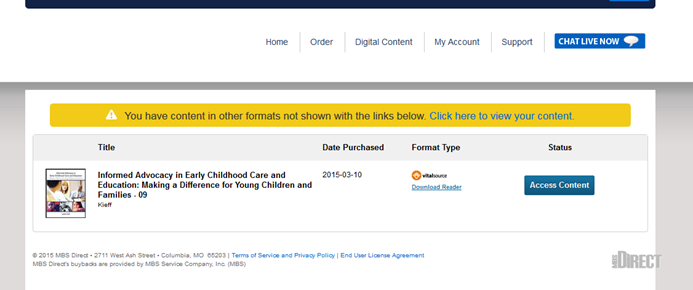
- To access the online version of the eBook you will need to click “ACCESS CONTENT”. This will prompt you to create an account with VitalSource. To access the online format you do not need to create an account so you may select “Continue without registering” on the prompt. (The register prompt is below)
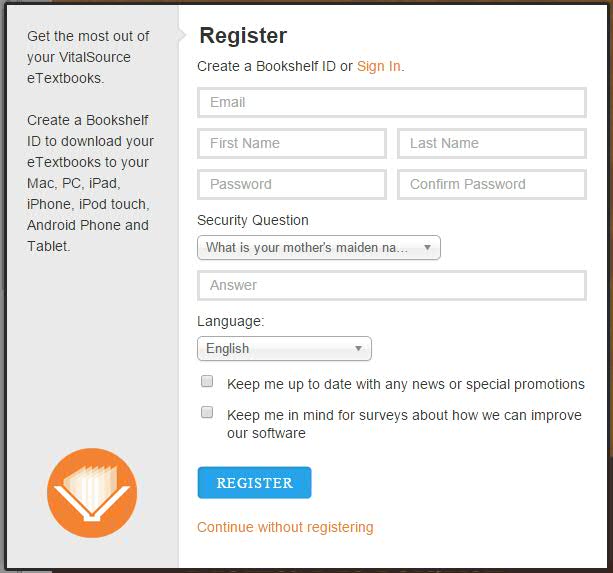
You are able to access this online format from any computer with an internet connection.
- To access the downloadable part of this eBook, you will need to click “DOWNLOAD READER” on the picture of your eBook from step Number 4. This will load a page with the download. (Below)
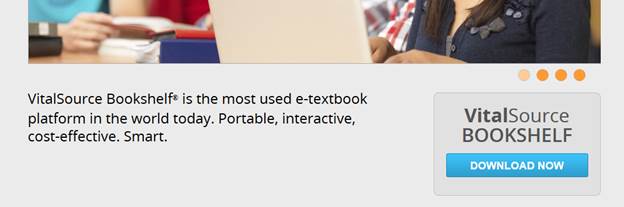
- The Vitalsource Bookshelf is the eReader which can be downloaded on 2 computers. You must register with VitalSource prior to downloading an eBook to your computer or mobile device.
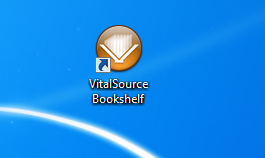
- Once the Vitalsource Bookshelf is download to your desktop you will get the icon below.
- Upon opening up the Vitalsource Bookshelf it will ask you to sign into your account. You will need to sign into your account which you created on step Number 5. Once signed in this will open up the eReader, and list a picture of your eBook. To access your eBook simply click on the picture.